Google Docs Voice Typing: Setup, Commands & Fixes

Learn how to use Google Docs Voice Typing, enable commands, fix microphone issues, improve accuracy, and troubleshoot common dictation problems.
Most of us open Google Docs and immediately reach for the keyboard. That makes sense. The keyboard is the normal input device, so we barely think about it.
Voice Typing swaps that input device for your microphone. You talk, the browser listens, and Google Docs places the recognized words where your cursor is sitting.
That sounds simple, but there are really two jobs happening. First, Docs have to understand the words you are saying. Then, when you use a command such as “bold” or “select paragraph,” it has to understand that you are controlling the document rather than dictating those words into it.
Once you see those as two separate jobs, setup and troubleshooting become much easier. If no words appear, you probably have a microphone or permission problem. If words appear but commands do not work, you are looking at a language, phrasing, or command-recognition problem instead.

So what is actually happening when you speak?
The microphone captures your voice. Your browser handles the speech-to-text service, then sends the recognized text into Google Docs. That browser layer matters because Voice Typing is not simply a microphone button inside the document. Google says the feature works in current versions of Chrome, Edge, and Safari.
Think of the browser as an interpreter standing between you and the document. You provide the words, the microphone captures them, the browser tries to understand what they mean, and Google Docs acts on the result. Sometimes that result is text. Sometimes it is an instruction.

First, get the microphone into the conversation
Before Google Docs can do anything useful, your computer has to provide a working microphone and your browser has to be allowed to use it.
Open a Google Docs document in a supported desktop browser. Go to Tools → Voice typing. A microphone control appears beside the document. Choose the language or accent you plan to use, click the microphone, and speak normally. When you are finished, click it again or say "Stop listening."
Step | What to do | What you should see |
1 | Open a Google Docs document | Use a current version of Chrome, Edge, or Safari. |
2 | Go to Tools → Voice typing | A floating microphone control should appear. |
3 | Choose the language | Match the language or accent you plan to speak. |
4 | Click the microphone and talk | Speak clearly at a normal volume and pace. |
Now talk like you are dictating, not like you are reading code
Voice Typing works best when your speech sounds natural. You do not need to shout or slow every word down. Google specifically recommends speaking clearly at a normal volume and pace.
Punctuation is spoken too. Depending on the language, you can say things such as “comma,” “question mark,” “new line,” or “new paragraph.” Google notes that punctuation support varies by language, so a phrase that works in one language may not behave the same way in another.
A useful habit is to dictate in thought-sized chunks. Say a sentence, add the punctuation, then continue. That makes it easier to notice recognition mistakes before they multiply across an entire page.
But Voice Typing can do more than type what you say
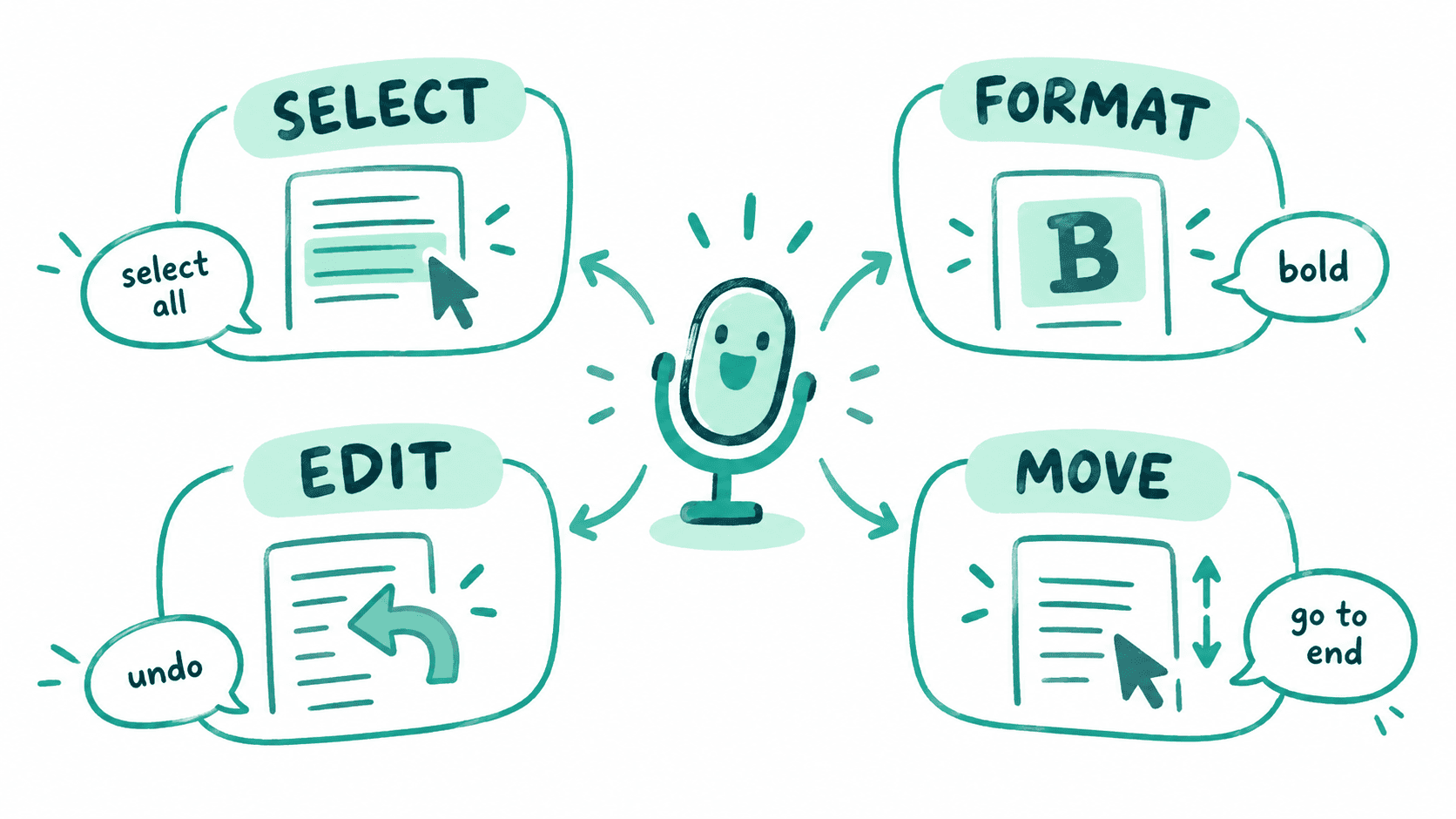
Once Voice Typing is running, English-language voice commands can control the document itself. This is the point where the feature starts feeling less like a transcription tool and more like a hands-free editor.
Google says voice commands are available only in English, and both the account language and the document language need to be English for those commands. That restriction is easy to miss because dictation itself supports many languages.
You do not need to memorize the complete command list. Start with a small set that maps to actions you already perform with a mouse or keyboard.
Say this | What Docs does |
Select paragraph | Select the current paragraph |
Bold | Apply bold formatting to selected text |
Italicize | Apply italics |
Create numbered list | Start a numbered list |
Delete last word | Remove the previous word |
Go to the end of the paragraph | Move the cursor |
Insert page break | Add a page break |
Undo | Reverse the previous action |
Stop listening | Stop voice typing |
There are many more commands for selecting text, changing headings, setting font size, changing alignment, creating tables, inserting links, moving around the document, and more. If you forget one, Google also supports the commands “Voice typing help” and “Voice commands list.”
What happens when it hears the wrong word?
Dictation is not a one-shot recording. You can correct text while the microphone is still on. Move the cursor to the mistake, fix it, then move the cursor back to where you want to continue speaking.
Google Docs may also underline some voice-typed words in grey. Right-clicking those words can show suggested alternatives, which is useful when Docs heard something close to what you said but choose the wrong word.
The important idea is that you do not have to restart Voice Typing every time recognition misses a word. Treat it like live drafting: speak, notice, correct, continue.
Why does “select all” sometimes get typed into the document?
Because the system first has to decide whether your words are content or an instruction.
Google recommends speaking slowly and clearly for commands, with a short pause before and after the command. You may briefly see the words of a command appear in the document before Docs recognizes and executes it. The microphone bubble also shows the most recent command it heard.
If the wrong thing happens, “Undo” is often the quickest recovery. Then repeat the command more clearly.

When Voice Typing stops working, find the broken link in the chain
Troubleshooting gets easier if you follow the same path your voice follows: microphone → browser → speech recognition → Google Docs.
What you see | What to check next |
Voice typing is missing from Tools | Check that you are using a supported desktop browser. If you are using a work or school account, the feature may also have been disabled by your administrator. |
The microphone opens but hears nothing | Check the computer’s microphone settings, browser microphone permission, physical connection, and whether another application is already using the microphone. |
Docs says it is having trouble hearing you | Move to a quieter space, try an external microphone, or adjust the microphone input volume. |
The wrong words keep appearing | Confirm the selected language or accent, speak clearly at a normal pace, and correct recognition mistakes as they happen. |
Commands are being typed instead of executed | Make sure the account and document language are English, then pause before and after the command and speak it slowly and clearly. |
Punctuation does not behave as expected | Remember that punctuation availability varies by language. Use the punctuation terms supported for the selected language. |
It still does not work after checking settings | Close competing microphone apps if needed, then restart the browser or computer and try again. |

A few habits make Voice Typing feel much less fragile
Use a quiet room when you can. Background conversations create competing speech, which makes recognition harder.
Keep the microphone close enough to capture your voice without forcing you to raise your volume. A basic external headset microphone can be helpful in a noisy setup, but it is not required if your built-in microphone already works well.
Choose the right language before you begin. If you switch between languages frequently, changing the language in the microphone box is more reliable than hoping the system infers the switch correctly.
For long documents, separate drafting from polishing. Dictate the first version quickly, using only the commands you remember. Then review the page normally. Voice Typing is most useful when it reduces the friction of getting words onto the page, not when you force yourself to control every formatting detail by voice.
Voice Typing is not an audio recorder
One last mental model helps. Google Docs Voice Typing is designed to produce text, not preserve a recording of your voice. What matters to the document is the recognized text and the commands it understands.
That is why microphone quality, language choice, clear speech, and browser permissions matter so much. They all affect the short journey between the sentence you say and the sentence that appears on the page.
The easiest way to learn it is to use fewer commands at first
Start with the basic path: Tools → Voice typing → choose a language → click the microphone. Get comfortable dictating normal sentences and punctuation. Then add a handful of commands such as “bold,” “select paragraph,” “delete last word,” and “go to the end of the paragraph.”
If something breaks, do not treat Voice Typing as one mysterious feature. Check each layer in order: can the microphone hear you, can the browser use the microphone, is Docs receiving words, and are commands being recognized in the right language?
Once those pieces are clear, Voice Typing becomes much easier to understand. You are not teaching Google Docs how to listen. You are simply making sure each part of the speech-to-text chain is doing its job.
Want to go beyond built-in browser dictation? Explore Smallest.ai Pulse for real-time speech-to-text, or start building with the API.
Frequently asked questions
How do I enable Voice Typing in Google Docs?
Why is Google Docs Voice Typing not working?
Which browsers support Google Docs Voice Typing?
Can I use voice commands in Google Docs?
How can I improve Google Docs Voice Typing accuracy?