Speech to Text for Students: Turn Lectures Into Notes and Improve Accessibility

Speech to text for students converts lectures into searchable notes. Follow this practical workflow for recording, transcription, accuracy, and responsible use.
Speech to text for students means using speech recognition software to convert lectures, seminars, discussions, or personal dictation into written words. Rather than racing to capture every sentence while simultaneously trying to absorb what the lecturer is saying, students end up with a transcript they can return to, search, and build on later.
What follows walks through the process from start to finish: choosing a transcription method, recording better audio, checking the output, and turning raw text into study material worth keeping. The advice applies to students, educators, academic support teams, accessibility staff, and developers working on education technology.
Table of contents:
Speech to Text for Students: The Foundations, how transcription works and what it produces.
Real-Time or Pre-Recorded Transcription?, when to use each mode for lectures and discussions.
A Practical Lecture-to-Notes Workflow, a repeatable recording, transcription, and study process.
Improving Accuracy in Real Classrooms, audio setup, language settings, terminology, and review.
Accessibility, Languages, Privacy, and Permission, responsible academic use and text-based access.
Advanced Considerations for Education Technology, how transcription models fit student products.
Frequently Asked Questions, concise answers to common student concerns.
Key Takeaways and Next Steps, a practical checklist and development resource.
Speech to Text for Students: The Foundations
A speech recognition model receives audio, identifies patterns associated with spoken language, and returns text. Depending on the model and how it is configured, the output may also include timestamps, punctuation, or speaker labels.
In a lecture hall, that shift can be useful. Having a transcript can reduce the pressure to capture every sentence manually while listening, giving students another way to review the explanation afterward. Marking a confusing moment and returning to the exact wording later is far easier than scrubbing through an audio timeline looking for a definition buried somewhere in a 90-minute recording.
What many students get wrong: A transcript is not the same as a finished set of notes. The transcript represents what was spoken. Notes or summaries select, condense, or reorganize that material, so they can omit context or change emphasis.
That distinction matters when evaluating automatic lecture notes or AI note taking for students. Always keep the source transcript and, when permitted, the recording. Use them to verify quotations, technical definitions, assignment instructions, and any claims produced by a summarization system.
Real-Time or Pre-Recorded Transcription?
Choose the mode that matches the academic task.
Mode | How it works | Useful for | Main trade-off |
|---|---|---|---|
Real-time transcription | Text appears while speech is being captured | Following a lecture, live captions, seminars, and classroom transcription | Limited opportunity to repair poor audio before processing |
Pre-recorded transcription | A saved audio or video file is processed after the session | Missed classes, recorded modules, revision, and lecture notes transcription | Text is not available during the original session |
Use real-time lecture transcription when immediate text access matters. A student might follow a fast explanation on screen, confirm an unfamiliar term, or capture questions during a seminar. Live transcription is especially useful when students need text during the session and no recording will be available for transcription afterward.
Pre-recorded lecture transcription is often the more practical choice when a clean file already exists or when students want more time to review and correct the output. Students can upload after class, work through uncertain passages at their own pace, and divide the transcript by topic. It suits asynchronous courses and revision from archived recordings equally well.
Common uses across both modes:
Turn spoken explanations into searchable notes.
Capture seminars and group discussions, provided everyone has agreed to recording.
Review a lecturer's examples before an exam.
Create text from spoken revision sessions or personal study explanations.
Transcribe multilingual lectures when the selected system supports the spoken language.
A Practical Lecture-to-Notes Workflow
1. Prepare and capture the lecture
Confirm that recording is allowed. Charge the device, check available storage, select the correct input microphone, and make a short test recording before the session starts. Place the device where the lecturer's voice is louder than nearby conversation, without obstructing anyone or handling the device repeatedly during class.
2. Create and review the transcript
Send the live audio stream or saved file to the chosen service. For audio to text for students, preserve timestamps if the service provides them -- they create a direct route back to the source when something looks wrong. Then scan for blank sections, repeated text, improbable words, and abrupt topic changes that suggest a recognition failure.
3. Build organized study notes
Convert the checked transcript into a study resource:
Segment by topic: Use the course outline, slide headings, or timestamps.
Extract definitions: Copy the verified wording and add the source time.
Separate evidence from interpretation: Label the lecturer's claims, your comments, and open questions.
Create revision prompts: Turn major concepts into questions, flashcards, or practice explanations.
Link related materials: Add slide numbers, readings, formulas, and assignment criteria.
Mini example: A biology student records a permitted lecture on cell signaling. The transcript incorrectly renders several protein names. The student checks those names against the module glossary, corrects the text, groups the lecture by pathway, and only then creates a one-page revision summary.
That sequence prevents the most common failure with student transcription tools: treating raw output as authoritative. The transcript is a working record, not confirmation that every term was recognized correctly.
Improving Accuracy in Real Classrooms
Transcription accuracy varies with audio quality, background noise, accents, overlapping speakers, microphone distance, specialist vocabulary, and language. Even a capable model produces poor results when the lecturer is faint and three nearby students are talking at the same time.
Before and during class:
Move the microphone closer to the primary speaker when permission and room rules allow.
Keep the device stable and avoid typing or tapping beside its microphone.
Reduce avoidable noise from bags, paper, fans, or open corridors.
Select the language actually being spoken rather than relying on automatic detection.
Ask discussion participants to speak one at a time when you are facilitating the session.
After processing, review names, equations, abbreviations, quotations, and discipline-specific vocabulary. Compare suspicious passages with slides or readings. When the audio is genuinely unclear, mark the passage as uncertain rather than guessing at the wording.
Expert check: Confidence scores, when provided, indicate model uncertainty rather than factual correctness. A confidently recognized word can still be the wrong technical term.
Overlapping speech deserves particular attention in seminars. Speaker labels can help organize a discussion, but diarization and transcription are separate tasks. Confirm who said what before quoting a participant or attributing an argument.
Accessibility, Languages, Privacy, and Permission
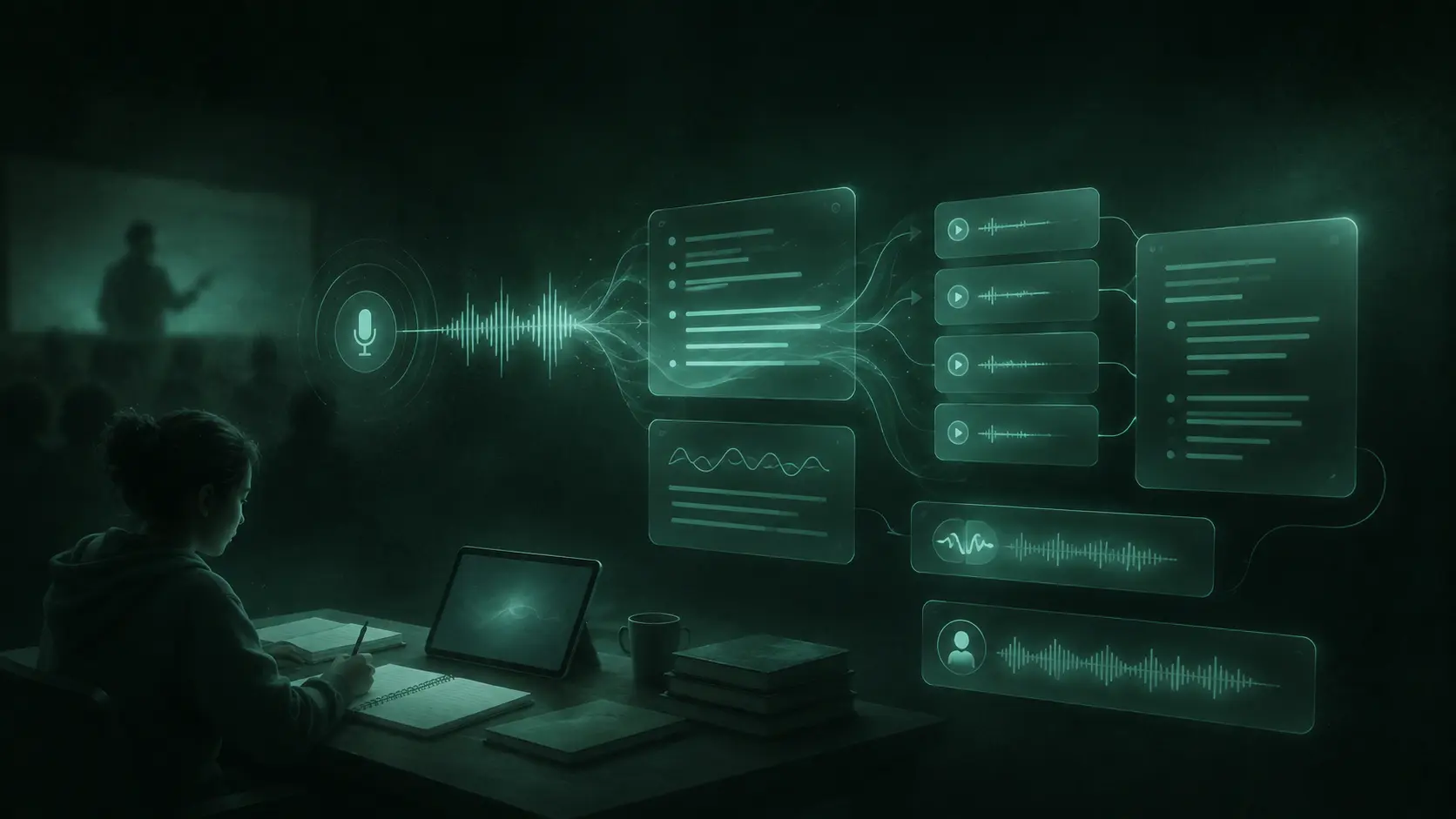
Text-based access can complement different ways of following and reviewing spoken teaching.
Some students benefit from seeing spoken material as text during class or reviewing it afterward. Accessible note taking reduces dependence on memory alone and provides another way to process fast, unfamiliar, or information-dense speech. The W3C Web Accessibility Initiative notes that web accessibility can also benefit people facing situational limitations, such as environments where they cannot listen to audio, as well as people using small-screen devices.
Speech-to-text can form part of assistive technology for students, but it does not replace formal accommodations, professional captioning, sign-language interpreters, communication access services, or institution-provided support. Students who need an accommodation should work directly with their university's accessibility team.
Multilingual lectures and language switching
Multilingual lecture transcription only works reliably when the service supports the relevant language and the correct language is selected before recording starts. A lecture that switches between languages, mixes technical English with another language, or uses regional terminology needs extra review. Support for one language does not guarantee reliable handling of code-switching.
Record responsibly
Permission first: Follow university policies, course rules, instructor directions, and applicable local laws before recording. Seminars can contain student names, opinions, personal information, or unpublished research, so participant consent and secure handling matter.
Check where recordings and transcripts are stored, who can access them, and when they will be deleted. Sharing classroom material publicly without authorization is not acceptable. When a recording contains sensitive discussion, use the minimum necessary retention period and the institution's approved systems where required.
Advanced Considerations for Education Technology
Speech recognition is only one piece of the stack. A production education workflow also requires audio capture, format handling, authentication, storage, transcript editing, search, deletion policies, and clear labeling that distinguishes generated summaries from verbatim transcripts. Students need a path from any note back to the underlying transcript and, where audio is retained, to the matching timestamp.
Smallest.ai offers speech-to-text technology for developers building these experiences. Per current official documentation, Pulse handles real-time and pre-recorded transcription; Pulse Pro targets high-accuracy English pre-recorded audio. Check the documentation before selecting models.
These are APIs, not finished student applications. Whichever model an education team selects, the team still has to design the recording interface, permission controls, transcript review tools, course organization, and any summarization layer on top -- and the same holds when building AI notetakers. The API handles transcription; everything around it is the product.
Design checks for education teams:
Label text clearly as live, final, edited, or AI-generated -- students should never have to guess which they are reading.
Preserve timestamps and corrections without silently overwriting the source record.
Test across lecture halls, remote sessions, seminars, and speakers with accented or highly technical speech before shipping.
Provide keyboard navigation, readable layouts, and export formats that work for studying, not just reading on screen.
Define retention periods, consent flows, access rights, and deletion controls before launch.
Key Takeaways and Next Steps
A dependable student workflow comes down to six actions:
Get permission before recording.
Capture the clearest audio available.
Choose live or pre-recorded processing for the actual task.
Review terminology, speakers, and uncertain passages.
Keep transcripts separate from summaries and personal notes.
Store and delete recordings according to university rules.
When handled carefully, speech to text for students turns spoken teaching into searchable academic material while preserving a route back to the original context. It supports lecture review, discussion capture, revision, and text-based access without removing the need for judgment or formal support.
Developers and education technology teams planning transcription features can explore Smallest.ai Speech-to-Text and evaluate how its APIs fit their recording, review, accessibility, and study workflows.
Frequently asked questions
Can speech-to-text replace taking notes during a lecture?
Is real-time transcription more accurate than pre-recorded transcription?
Can I record any university lecture?
Can lecture transcription create summaries automatically?
What should I do when technical terms are wrong?